KB5124008 stops File History seeing backup drives on Windows 11 (September 8, 2026)
Chapters
What broke
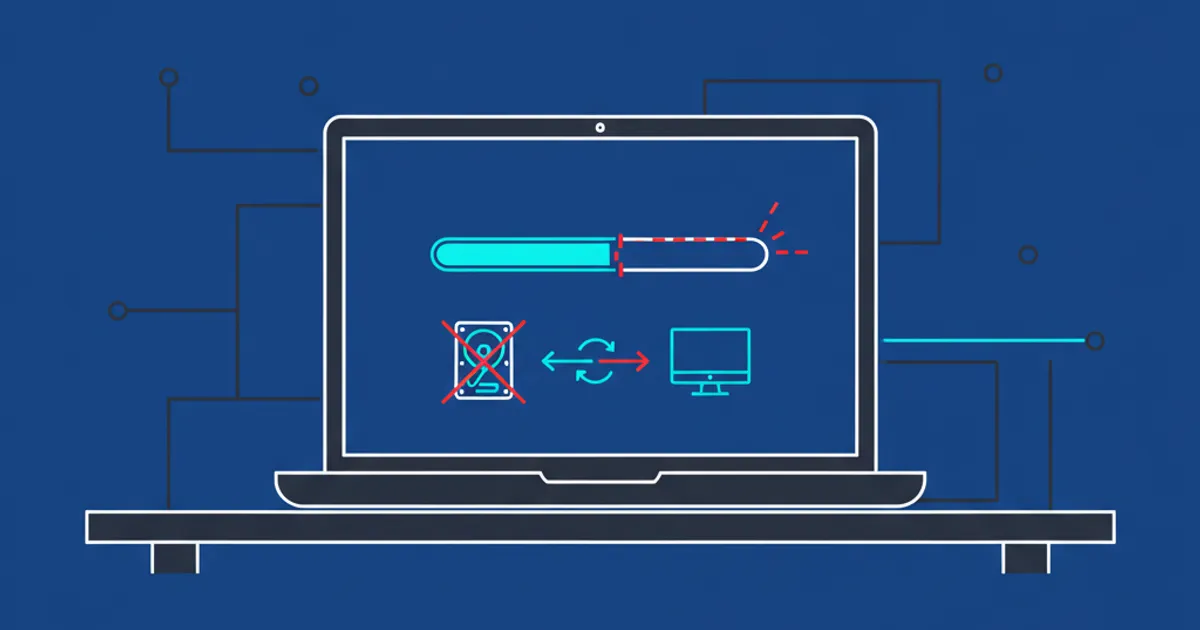
The report on Microsoft Q&A is specific. After Windows Update installed KB5124008, the September 2026 .NET Framework security update KB5126052 and the Malicious Software Removal Tool KB890830, the File History panel opened but would not run. It displayed an error telling the user to connect a drive, with the external drive connected and checked for both read and write access. The Turn Off button did not function, and Run Now only repeated the reconnection message.
Three separate Windows 11 computers on build 26200.9445 behaved the same way, and File History had worked on all three before the updates. That is the useful detail: this is not one machine with a failing disk, and the drive itself tests fine.
TL;DR
File History on Windows 11 stopped recognizing external backup drives after KB5124008, the mandatory September security update, according to a report posted to Microsoft Q&A at 22:43 UTC on September 8, 2026. The panel opens, then shows an error telling you to connect a drive that is already connected and verified for read and write. The same update fixed the mouse cursor and desktop background bugs, per Microsoft Support on September 8, 2026, and File History is not in its known issues list.
- KB5124008 takes Windows 11 25H2 to OS build 26200.9445 and 24H2 to 26100.9445.
- The symptom: File History opens but will not run, Turn Off does nothing, and Run Now only repeats the message about connecting a drive.
- One report covers three separate Windows 11 PCs on build 26200.9445, all of which had File History working before the update.
- Uninstalling KB5124008 restored File History on all three machines, and Windows Update may reinstall it within one to two days unless it is blocked.
- As of September 8, 2026 Microsoft has not listed File History among the update's known issues, so there is no fix and no official workaround.
What KB5124008 fixed on the same day
KB5124008 is not a bad update in the round. Microsoft Support lists improvements that include the mouse cursor customization settings and the correct loading of desktop background and personalization settings, better Teams and Outlook stability on Arm64 PCs, Remote Desktop audio redirection, and an adjustment to Morocco Standard Time for the UTC+00:00 transition.
That is what makes the File History report worth writing down on release day. The update closes several long-running annoyances and, in at least one environment, takes the backup feature with it.
| Update | What it is | Version or build |
|---|---|---|
| KB5124008 | Windows 11 24H2 and 25H2 security update, released September 8, 2026 | 26200.9445 (25H2) and 26100.9445 (24H2) |
| KB5126052 | September 2026 .NET Framework security update | not stated in the report |
| KB890830 | Windows Malicious Software Removal Tool | x64 version 5.145 |
What Microsoft has acknowledged, and what it has not
The known issues section of the KB5124008 article lists USB audio devices failing to start, host folder shares becoming unavailable in Hyper-V based Linux virtual machines, and Remote Desktop Services not responding. File History is not among them as of September 8, 2026.
So the status is honest but thin: a single detailed report covering three machines, with a clean before-and-after, and no vendor acknowledgement. I would treat it as a strong signal to check your own backups rather than as a confirmed defect affecting every PC.
The workaround, and what it costs
Two things helped in the report. Re-selecting the drive under Control Panel, File History, Select drive gave some machines a temporary reprieve. Uninstalling KB5124008 restored File History on all three affected computers.
The uninstall carries a real price. You give up September's security fixes on that machine, and Windows Update may reinstall the update within one to two days unless the update is blocked, which in the report meant a PowerShell block. A backup feature that is broken and a security update that is missing are both risks, and only you can weigh which one matters more on a given machine.
What you can do today
1. Check the build. Run winver, or open Settings, Windows Update, Update history. Build 26200.9445 or 26100.9445 means KB5124008 is installed.
2. Test the drive independently. Copy a file to it and back. If read and write work and File History still asks you to connect a drive, you are looking at the reported pattern.
3. Re-select the drive in Control Panel, File History, Select drive. It changes nothing about your security state and it brought File History back for some machines in the report.
4. Make one backup today that does not depend on File History. Copy the folders you actually care about to the external disk by hand. A backup that silently stopped is the real damage here, and it does not announce itself.
5. Treat removing KB5124008 as a last resort, and as a decision rather than a reflex. If you do it, plan for the update being offered again within a day or two, and for the September security fixes being absent until you reinstall it.
Frequently asked questions
Is the File History failure a known issue for KB5124008?
Not as of September 8, 2026. The update's known issues cover USB audio, Hyper-V host folder shares and Remote Desktop Services. File History is not listed, so what exists is a user report, not a Microsoft acknowledgement.